Full Interactions and Action Items Report
A Full Interactions and Action Items Report can be generated for a specified period of time.
Navigation
Affiliates can navigate to the Full Interactions and Action Items Report form by taking a few steps. First, Affiliates should click the “Reports” navigation menu item in the navigation bar at the top right of their M3 panel.

Once clicked, the Affiliate will be navigated to the Reports view. Affiliates can then click the “Full Interactions and Action Items Report” item in the Reports menu.
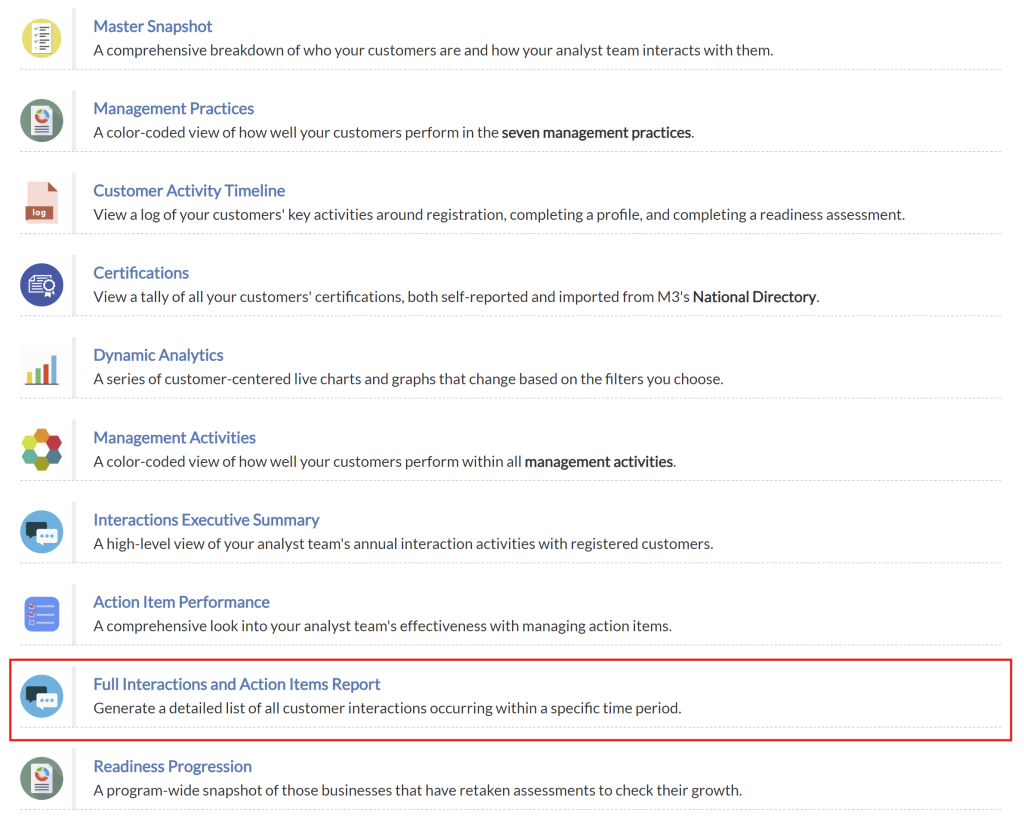
Upon clicking the “Full Interactions and Action Items Report” item in the Reports menu, the Full Interactions and Action Items Report form will pop up for Affiliates to complete.
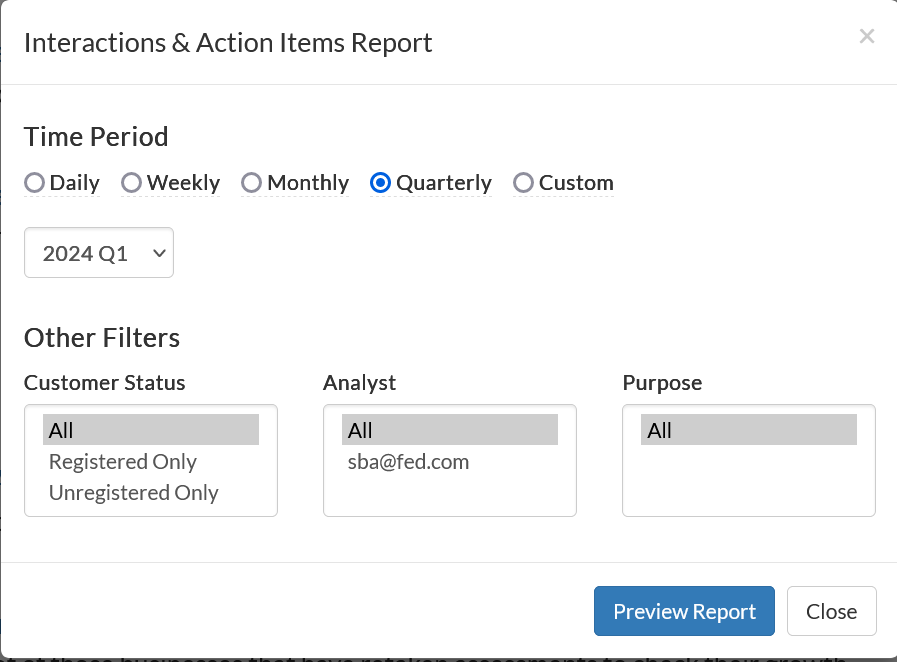
Interactions and Action Items Report Configuration Form
Affiliates have the ability to configure a comprehensive interaction and action items report to be generated based on specific categories such as:
- Time period
- Customer status
- Analyst
- Purpose
Interactions and Action Items Report Preview
After configuring the report, a the Affiliate will be presented with a preview of the report which will be generated. This chart displays the details of the selected categories within the specified time period, offering a comprehensive overview of relevant data for analysis.
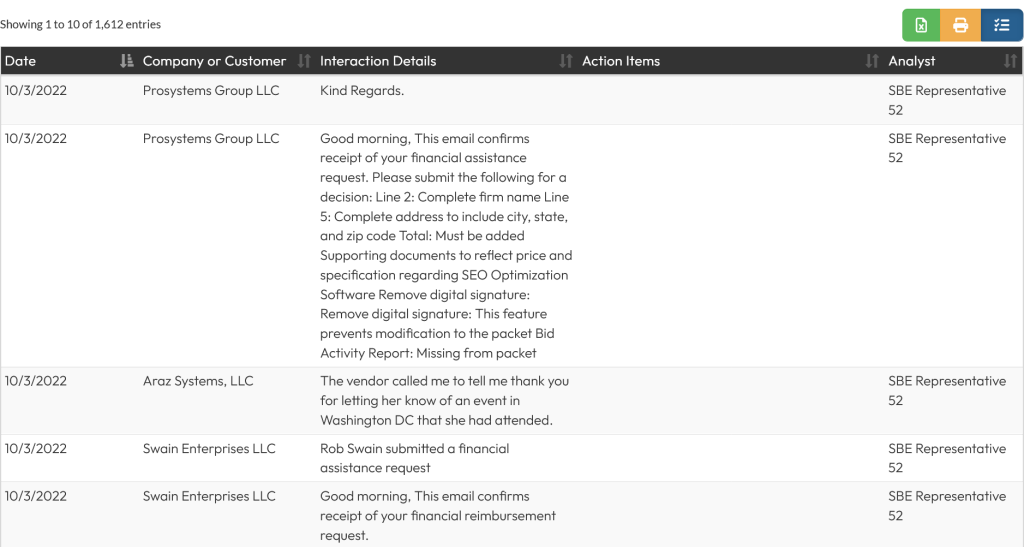
Exporting an Interactions and Action Items Report
These buttons allow affiliates to take the following exporting actions:
- Green: Export to a excel
- Yellow: Print all rows
- Blue: Show or hide action items in exported report