Success Plan – Affiliates
Once a business owner has completed a readiness tool, a Success Plan is generated that captures their results. These results can be leveraged to identify actionable strategies to support their growth and improve their contract readiness. Recommendations can also be provided to business owners through the Success Plan to assist in this effort.
Navigation
To access the Success Plan, go to the directory on the dashboard. Once the directory loads, select the desired company.

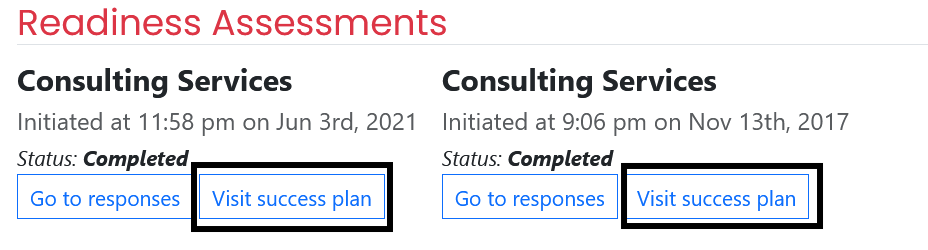
After selecting the company from the Directory, a snapshot of their business profile will be presented. Scroll to the bottom of the snapshot to the Readiness Assessment section and select the Success Plan from the readiness tool you wish to review.
Overview
Each success plan is comprised of 4 different sections: Business Profile, Business Readiness, Ratings by Management Practices, and Ratings and Recommendations by Management Activities.
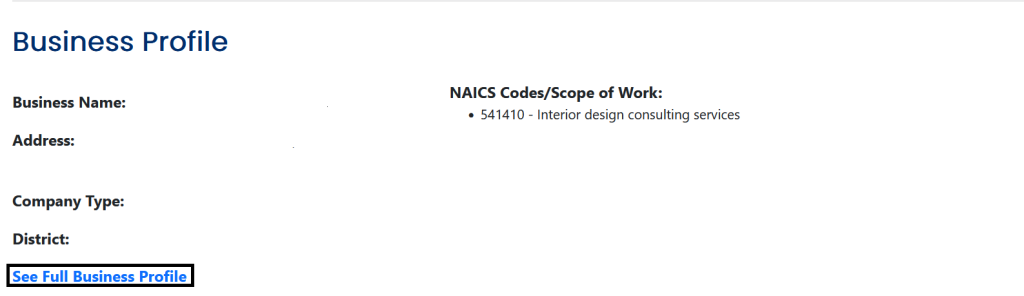
The Business Profile section provides a summary of details about the business. The overview includes:
- Business Name
- Address
- Company Type
- District
- NAICS Code
To view more details about the business, you can access the full business profile by clicking the “See Full Business Profile” link.
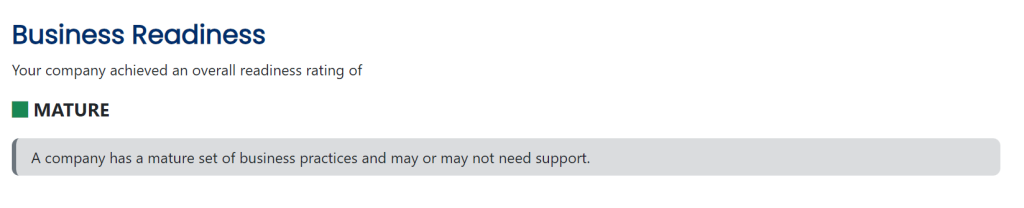
The Business Readiness section presents the overall readiness rating for the selected business, as evaluated by the completed readiness tool. The readiness rating is color-coded to indicate the readiness level of the business:
- Blue: Enterprise
- Green: Mature
- Yellow: Foundational
- Red: Entrepreneurial
The Ratings by Management Practices section provides further insight into the practices that determine the Business Readiness rating. There are seven key management practices which determine the Business Readiness rating, and the color codes assigned to each practice have the same coding as the Business Readiness rating codes described above.
At the bottom of this section, there is a “See Full Assessment Results Report” link which can be clicked to navigate to the full set of results from the readiness tool’s evaluation.

The Ratings and Recommendations by Management Activities presents ratings for each Management Activity evaluated by the Readiness Tool. It also presents the relationship between each management activity and the various Management Practices they relate to. Below each management activity header is a “See responses” link which will show each of the responses from the readiness tool that are evaluated to produce the rating for that activity. An “Actionable Insights” section is made available which allows you to create and assign recommendations and resources for the business owner. These items should be distributed with the purpose of connecting the business owner with the guidance and tools they need to support their business’ growth and success.

Resources and Recommendations
Recommendations and resources can be managed under any Management Activity addressed as a part of the success plan. This enables you to provide business owners with targeted feedback and essential insights which can help support their business growth and success.
Create new Recommendation/Resource
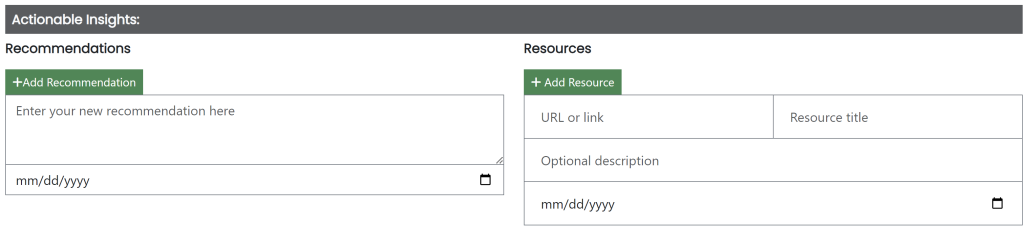
To create a new recommendation:
- Provide the text for the recommendation in the identified text area.
- Provide a target date to follow up with the business owner about the recommendation
- Click the “Add Recommendation” button to enter it into the Success Plan.
To create a new resource:
- Provide a URL which will navigate the business owner to the resource
- Provide a title for the resource being added
- Provide a description of the resource being provided
- Provide a target date to follow up with the business owner about the resource
- Click the “Add Resource” button to enter it into the Success Plan.
Manage Existing Recommendations/Resources
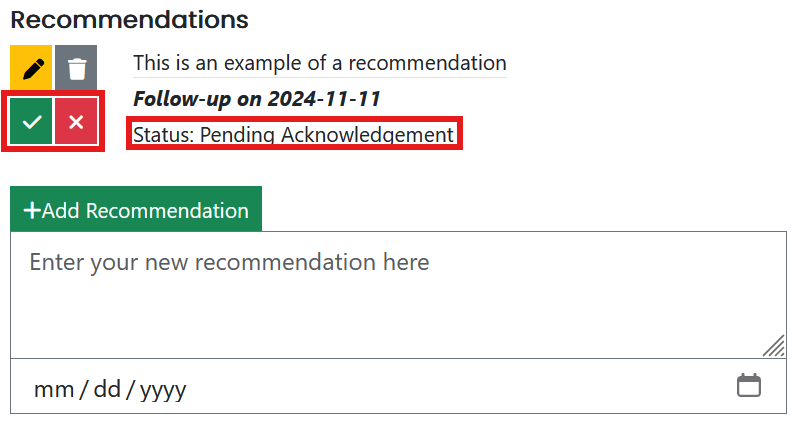
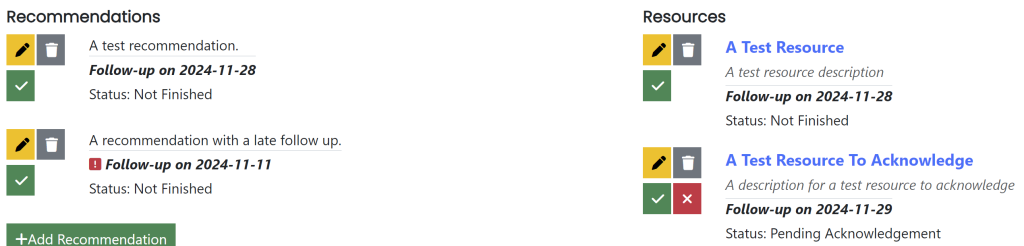
Once created, all resources and recommendations provide the same controls for management. With each of these items, you will be able to:
- Edit
- Delete
- Mark as acknowledged
- Mark as rejected
- Note that you will only be able to reject a resource if it has been requested to be acknowledged by the business owner
- Note that when rejecting a resource, you will be required to provide a reason for the rejection before the action can be completed
A status will appear for each resource/recommendation to indicate if it is:
- Not Finished
- Pending Acknowledgment
- Completed
When the follow up date passes for a resource/recommendation, an indicator will appear to alert you to either conduct the follow up, or change the follow up date to a future time.
Publishing
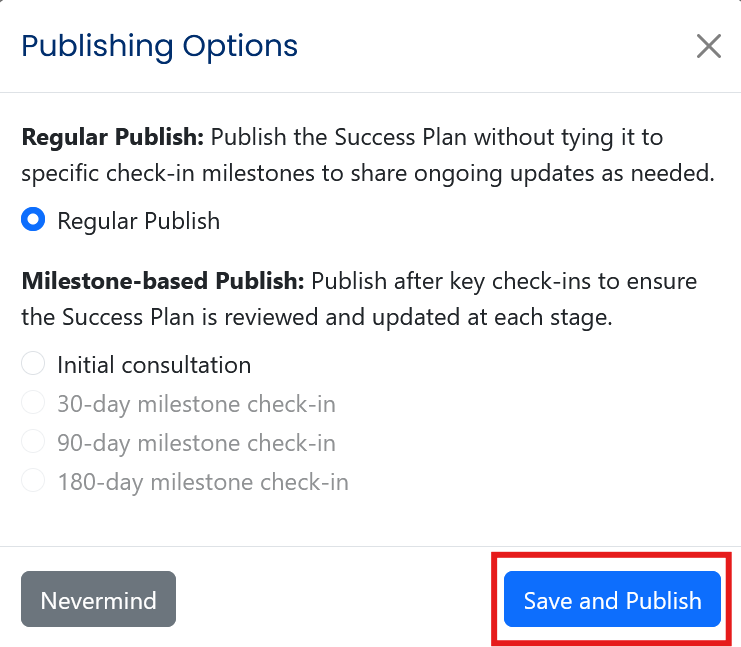
When adding new resources and recommendations to the success plan, they will be saved automatically as a part of a new success plan draft. To publish the newly drafted version of the success plan, you must click the yellow Publish button in the bottom right corner of the plan window, which will provide the following options:
- Regular Publish
- A series of Milestone-Based Publishing options, including:
- Initial Consultation
- 30-day Milestone Check-in
- 90-day Milestone Check-in
- 180-day Milestone Check-in
Once the publishing option is selected, click Save and Publish to make it available to the business owner, or select Never mind to return to the previous screen.

Logged Interactions For Success Plan Publishing
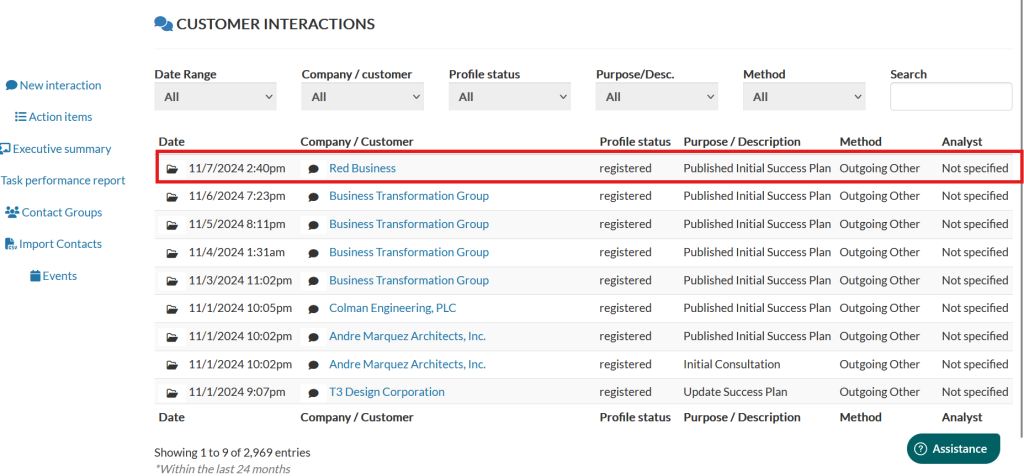
Once recommendations and resources have been published, an interaction record will be logged automatically to capture the action that has been taken. This record will appear in the Interactions table.
To locate the record of the success plan publishing:
- Navigate to the Interactions tab on the dashboard.
- Once the table loads, all interaction records for the publishing of a success plan will be listed along with any of the other interactions that have been logged. A purpose code will be associated with each record to identify what type of publishing was completed.

Notifications
When the business owner has reviewed a resource or recommendation and feels that they have effectively taken advantage of it, they will request acknowledgment of having completed the item. Upon submitting this request, you will receive a notification to review their request in the top left corner of your dashboard.

If you click on the “Success Plan Request” notification, you will be navigated to the resources and recommendations view. On this view you will be presented with a table of items that have been assigned to business owners, along with some statistics, including:
- Number of published workplans
- Number of assigned and completed recommendations
- Number of assigned and completed resources
- Number of late follow-up tasks
For any of the records presented in the table, you can click the link in the “Type” column to be navigated to the success plan it is attached to.
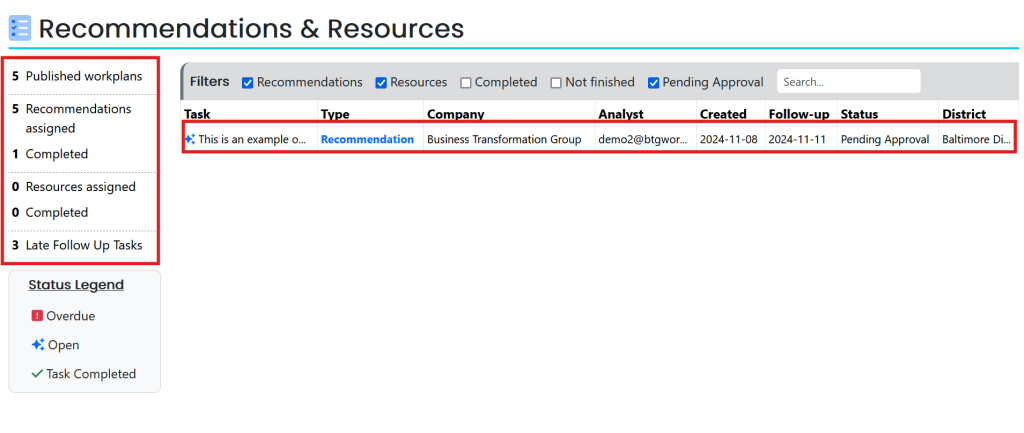
Once the business owner submits the success plan, it will be marked as pending acknowledgment. At this point, you can either accept or reject the submitted success plan.
Approval or Rejection of Resources and Recommendations:
- If the affiliate approves the resources and recommendations, the status will update to completed.
- If the affiliate rejects them, they will be required to provide a reason for the rejection before finalizing it. Once finalized, the status will be updated to “Not Finished”