Interactions
The “Interactions” feature allows affiliates to document their correspondence with companies and customers. By recording interactions, affiliates develop a trail of their customer engagement which can be referenced later on. Affiliates may also create action items to associate with the interactions they record. These action items can be assigned to Analysts and closed by them once their action item has been completed.
Navigation
Affiliates can navigate to the Interactions view by clicking the “Interactions” navigation menu item in the navigation bar at the top right of their M3 panel.

Once clicked, the Affiliate will be navigated to the Interactions view.
Interactions Table
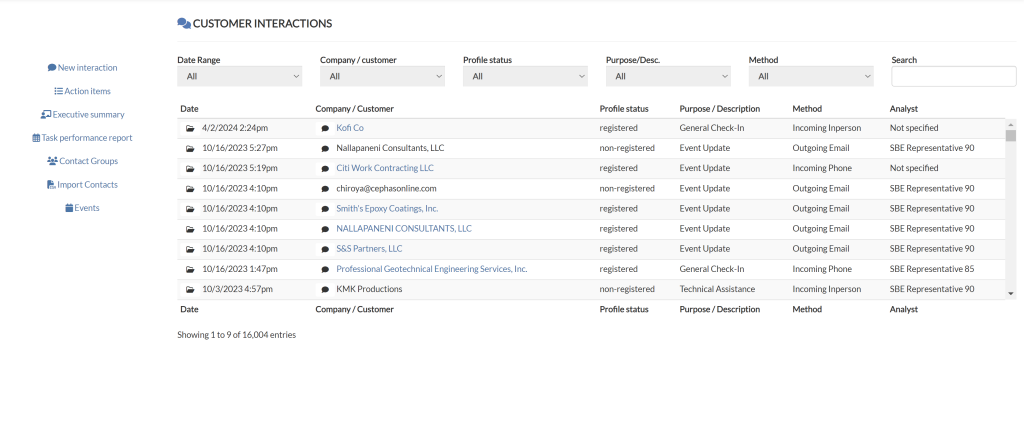
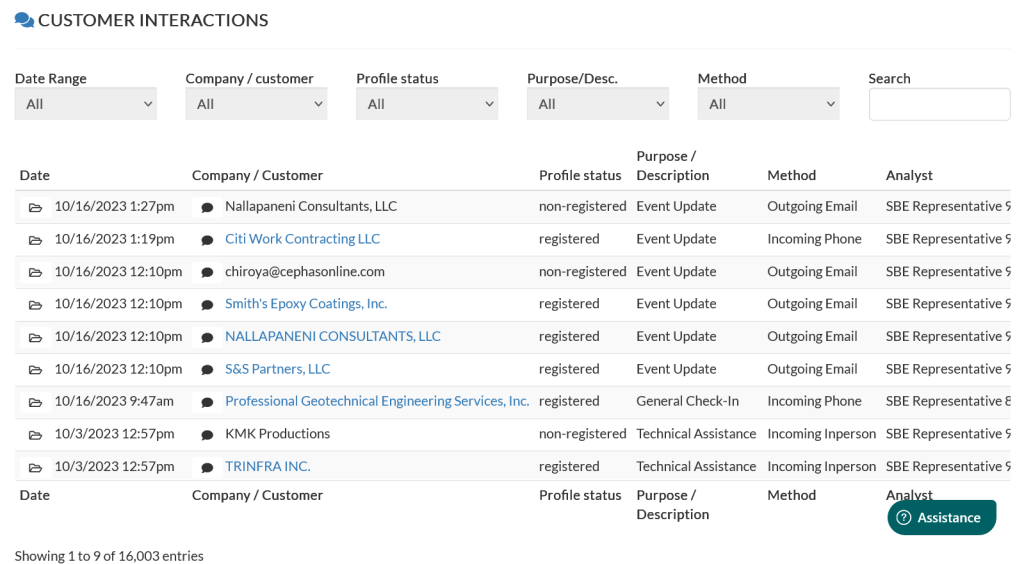
When opening the Interactions view, Affiliates are navigated to a table showing their most recent customer interactions. Each row in the table includes:
- Timestamp: Shows when the interaction occurred.
- Customer Name: Identifies the customer that was interacted with.
- Profile status: Signifies whether or not the customer interacted with is registered in M3
- Purpose/ description: Describes why the interaction took place
- Method: Describes how the interaction took place(e.g., call, email, meeting).
- Analyst: Identifies the Analyst who had the interaction
Create Interaction
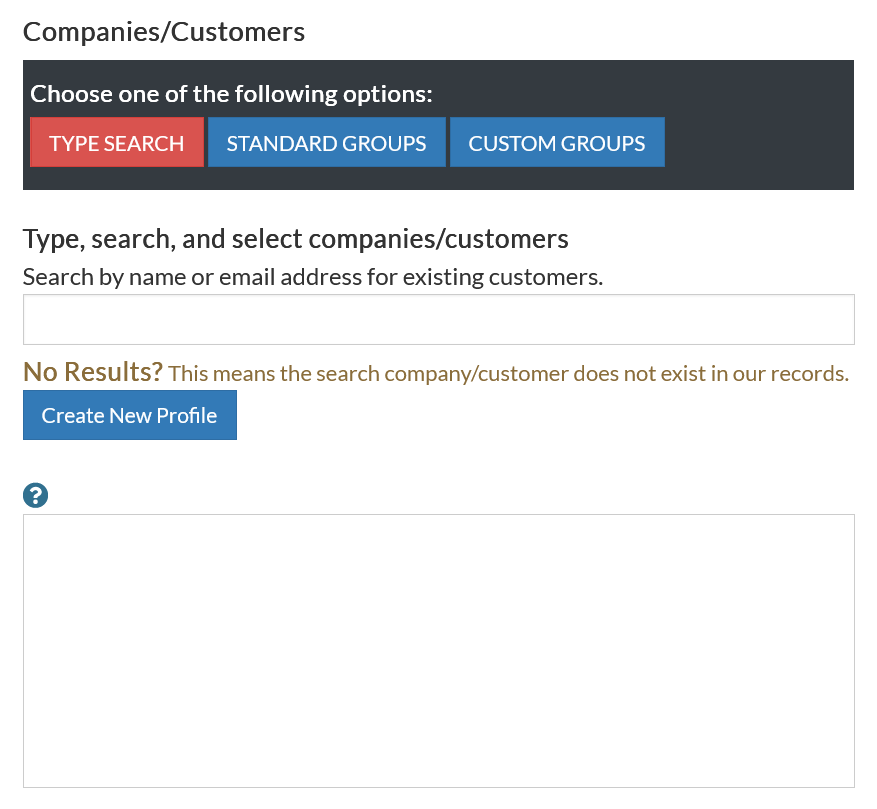
Search Companies/Customers
Affiliates have the ability to create new interactions, and may also create profiles for unregistered contacts they would like to track interactions with.
To select a registered customer for recording a new interaction, affiliates can:
- Use “Type Search” to find customers by name or email.
- Use “Standard groups” to filter customers based on registration status (All, Registered Only, or Non-Registered Only)
- Use “Custom groups” to filter customers based on one or more selected custom contact groups.
To Create a profile for non-registered customers, Affiliates can click the “Create New Profile” button and follow the instructions provided.
Add Interaction Details
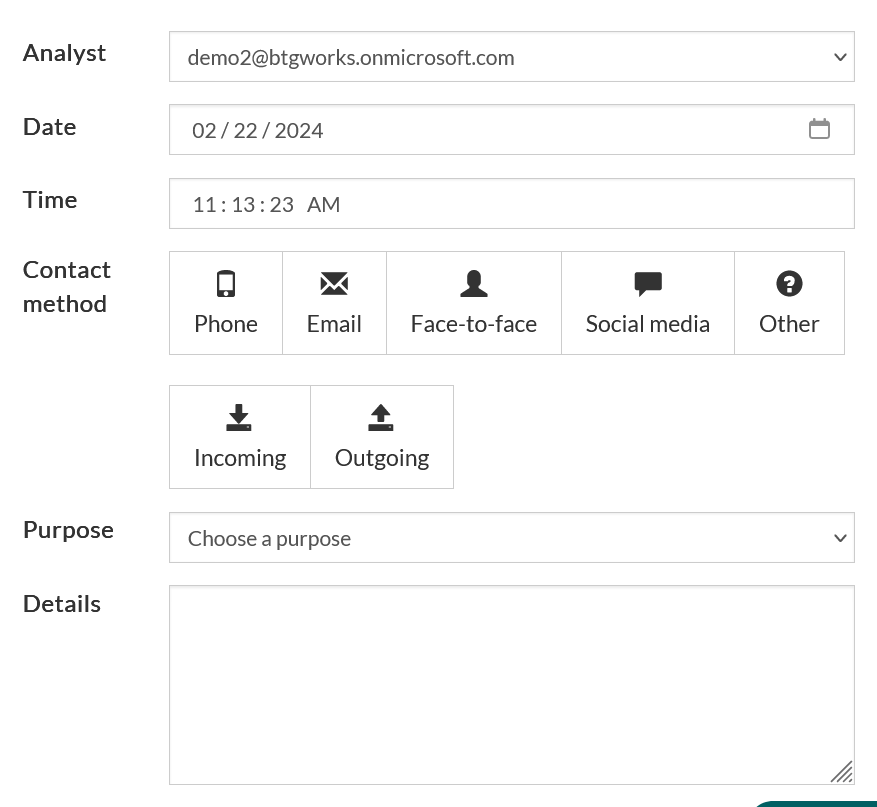
Once a customer is selected, Affiliates have the ability to provide specific details regarding the interaction they wish to record. Affiliates may declare:
- The Analyst responsible for the interaction
- The Date/Time the interaction took place
- The contact method through which the interaction took place
- Whether the interaction was incoming or outgoing
- The purpose of the interaction
- Any additional details provided via text which the affiliate may wish to record.
By adding detailed information and assigning interactions appropriately, affiliates can facilitate effective communication and streamline the interaction process for all involved parties
Action Items
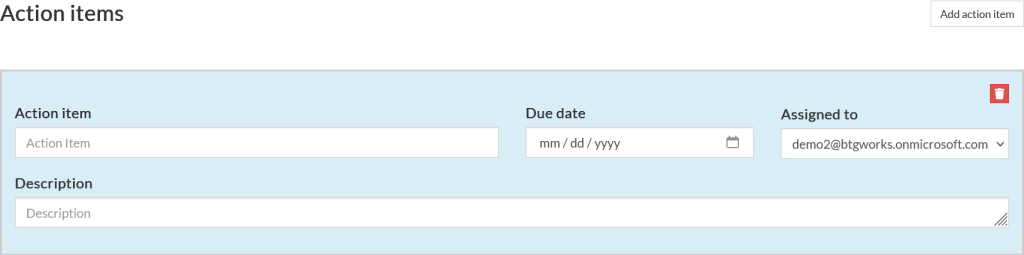
Affiliates may create action items within customer interactions that can be assigned to and completed by Analysts. Affiliates will provide the following information when creating new action items:
- Title for the action item
- Due date for the action item
- Who the action item is assigned to
- A description of the action item
By adding action items within customer interactions, affiliates can effectively delegate tasks and ensure that follow-ups are conducted promptly.